
How to Use the AI Tax Simulator
A complete walkthrough of the 1099-tax-ai.com simulator. Follow these steps to get your precise tax estimate.
Getting Started
This guide walks you through every input field to ensure accurate results. We'll verify the page layout, input your financial data, and finally analyze the AI's recommendations.
Verify the Page & Main Content
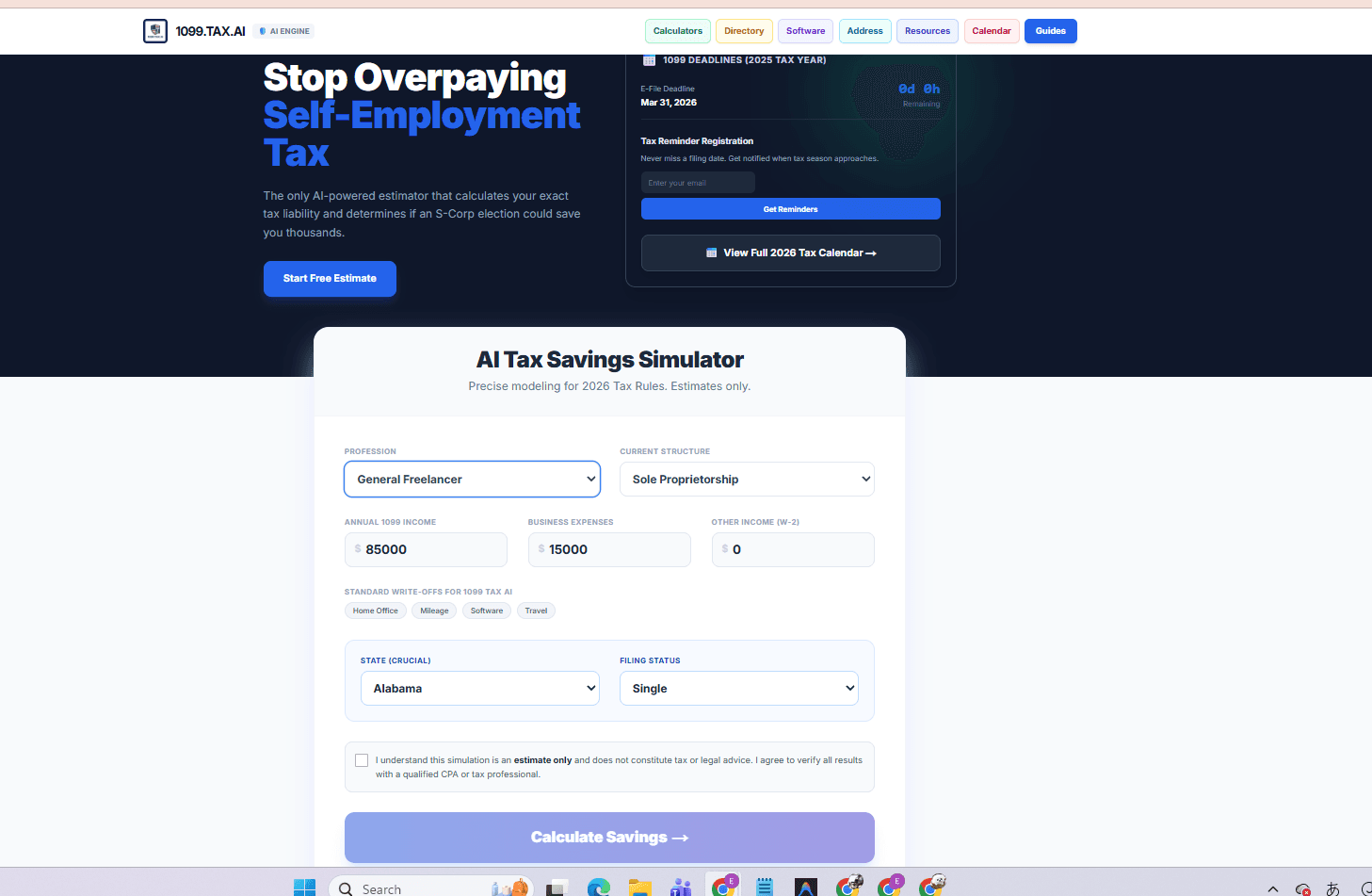
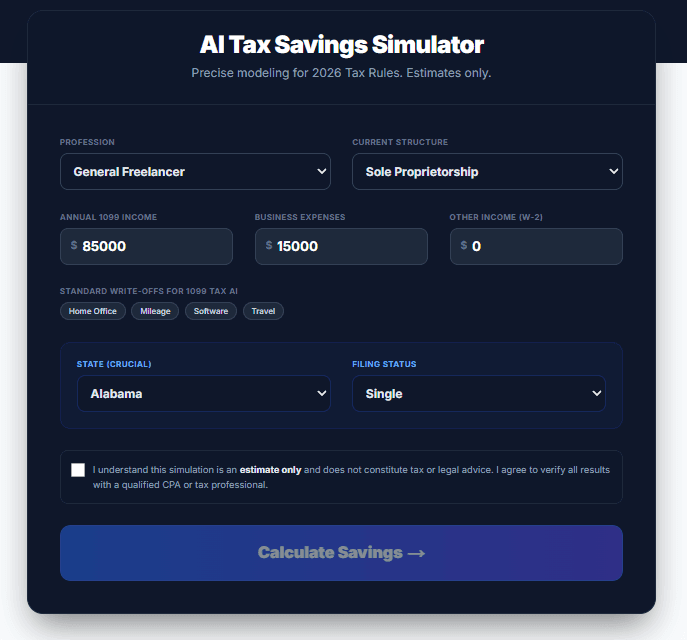
First, ensure you are on the main simulator page. The interface should be dark-themed and clearly labeled "AI Tax Savings Simulator".
Input Income & Expenses
Enter your total Annual 1099 Income (Gross Revenue) and your estimated Business Expenses.
*Note: Expenses reduce your taxable profit, so be as accurate as possible.

Select Your State
Crucial Step: Select your tax residency state. The AI will automatically apply state-specific income tax rates and S-Corp minimum fees (e.g., $800 for CA).

Select Your Profession
Choose the category that best fits your work to help categorize your business type.

Structure & Filing Status
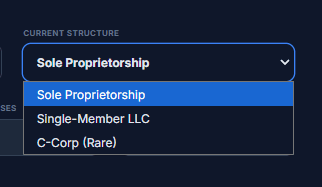
Select your Current Structure (usually Sole Proprietorship) and Filing Status (Single, Married, etc.). This determines your Standard Deduction.

Agree & Calculate
Finally, check the box to agree to the terms (Disclaimer) and click the Calculate Savings button to run the AI model.


Analyze Your Results
How to Read This:
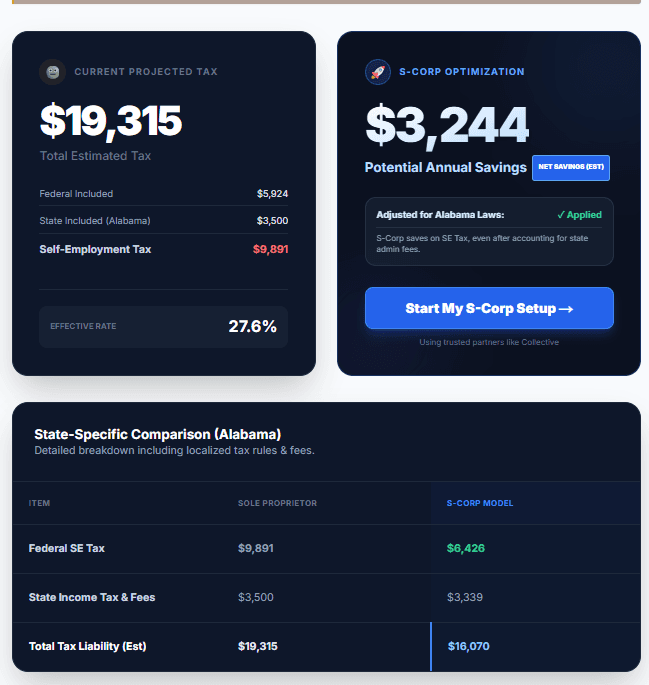
- Left Card:Current Projected Tax shows what you likely pay now as a Sole Proprietor (highest tax).
- Right Card:S-Corp Optimization shows your potential liability if you restructure.
- Green Number:Potential Annual Savings is key. If this is over $2,000, switching entities is strongly recommended.

Important Notice
Always pay attention to the disclaimer banner at the top of your results. This confirms the data usage (2026 Estimates) and reminds you that this tool does not replace professional legal advice.